How to send web articles to your Kindle: 5 ways compared
Short answer: the fastest way is a browser extension that turns the page into an e-book and sends it through Amazon's Send to Kindle service, such as Leafpost: open the article, click, done. Without an extension, print the page to PDF and upload it at amazon.com/sendtokindle, or email a document to your Kindle address.
Reading long articles on a Kindle is easier on the eyes, free of notifications, and you actually finish them. The hard part is getting them there with readable text, images and nothing else. Here are the five ways to do it, from best to worst for everyday use.
1. One-click browser extension (best)
A good extension does three things the other methods can't: it strips ads and menus, keeps images and headings, and formats everything as a real e-book that reflows on your Kindle. With Leafpost:
- Install Leafpost in Chrome, Edge or Brave and make sure you are signed in to Amazon in the same browser.
- Open the article and click the Leafpost icon. You can edit the title and author.
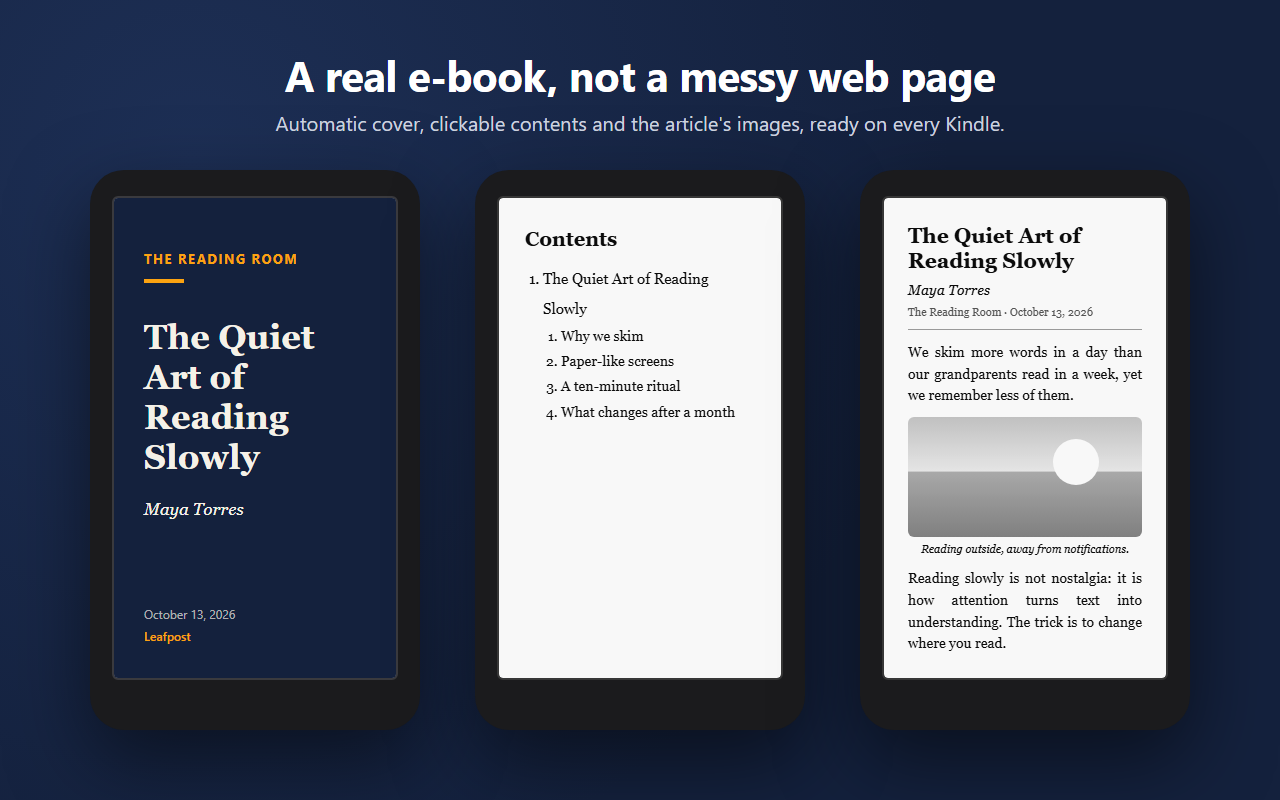
- Click Send to Kindle. The article shows up in your Kindle library under Documents a minute later, with its own cover and a clickable table of contents.
You can also select part of a page and send only that, right-click a link to send the article behind it without opening it, or press Alt+Shift+K.
Amazon's own "Send to Kindle for Google Chrome" extension works the same way in principle, but it hasn't been updated since January 2024 and many people run into sign-in loops. If that's you, see our fixes.
2. Print to PDF and upload it
No installation needed, and it works from any browser:
- Open the article and press Ctrl+P (Cmd+P on Mac).
- Choose Save as PDF. Turn off headers and footers in "More settings" if you can.
- Go to amazon.com/sendtokindle (or your country's Amazon), drag the PDF in and click Send.
The catch: a PDF keeps the page layout, so on a 6- or 7-inch screen the text is tiny and you can't change the font size. Amazon can convert PDFs into adjustable text when you upload them, but the result for web pages is often messy, with leftover menus and ads. It's fine for the odd article, but tiring every day.
3. Email it to your Kindle
Every Kindle account has a private address ending in @kindle.com. Anything you attach from an approved address lands in your library. To use it for articles, save the page as a PDF or a Word document and attach it. Limits: up to 25 attachments and 50 MB per email. Step-by-step: how to find your Kindle email address.
This is the method most "send to Kindle" services use behind the scenes. That's why they ask you to add their sending address to your approved list.
4. Read-later apps with Kindle delivery
Since Pocket shut down in 2025, people have moved to Instapaper, Readwise Reader, Raindrop and similar apps. Some of them can deliver saved articles to a Kindle, usually as a paid feature, and the formatting depends on each service. If what you want is a daily or weekly "Kindle digest" of everything you saved, read our Pocket alternatives guide. Leafpost can do this too, with its reading list and scheduled digest (Pro features, free during early access).
5. Copy and paste into a document
Select the article text, paste it into Word or Google Docs, export as DOCX and send that file to your Kindle. It always works and the text reflows, but you lose images and links unless you paste them by hand. It's the last resort.
Substack, newsletters and paywalled sites
- Substack: open the post on the web (from the newsletter's site or the link in the email) and send it with an extension. The post's title, author and images come with it.
- Paywalled news (NYT, The Atlantic, etc.): extensions that build the book inside your browser, like Leafpost, send what you can see. Log in to your subscription first. Services that fetch the link from their own servers can't get past the paywall.
- Long threads and documentation: select the part you need and send only the selection.
Comparison table
| Method | Speed | Readable on Kindle | Images | Setup |
|---|---|---|---|---|
| Extension (Leafpost) | One click | Yes, reflowable e-book | Yes | Install once |
| Print to PDF + upload | 4–5 steps | Small, fixed text | Yes | None |
| Email to @kindle.com | 3–4 steps | Depends on the file | Depends | Approved senders |
| Read-later app | Automatic | Usually | Usually | Account, often paid |
| Copy into a document | Slow | Yes | No | None |
FAQ
Where do sent articles appear on my Kindle?
In your library, under Documents. Use the library filter at the top. They sync to every Kindle and Kindle app on your account, but not to Kindle for Web. If you can't find them, see documents not showing up.
Is sending articles to Kindle free?
Yes. Amazon's Send to Kindle service is free over Wi-Fi, and so is sending single articles with Leafpost.
Can I send several articles as one book?
Yes. In Leafpost, "Save for later" builds a reading list, and "Send list now" delivers everything as a single book with a chapter per article. You can also schedule it to arrive every morning. These are Pro features, free during early access.